If you've ever landed on a website where the articles are in your language but the buttons and forms are in English, you know how jarring it can be. That's precisely why translating your WordPress plugins is just as crucial as translating your pages and posts. It’s about creating a truly seamless experience for every visitor, no matter where they're from.
Functional text like "Add to Cart," "View Cart," or "Submit" might seem small, but these are the critical interactive elements of your site. When a user can't understand them, their journey comes to a screeching halt.
Why Bother Translating WordPress Plugins?
Before we get into the nuts and bolts, let's talk about the why. A genuinely multilingual website offers a consistent and professional experience from start to finish. This means every button, every form field, and every notification generated by your plugins needs to speak the user's language.
Picture this: a customer from Spain is browsing your beautifully translated WooCommerce store. They're excited about a product, but when they go to check out, all the crucial buttons—"Apply Coupon," "Proceed to Checkout"—are suddenly in English. This abrupt switch creates confusion and erodes trust, often leading directly to an abandoned cart.
This isn't a hypothetical problem; it's a common and costly one. Untranslated plugin strings create a disjointed experience that tells global customers they aren't your priority, ultimately damaging your credibility.
The Real Cost of an Incomplete Translation
Skipping plugin translation isn't a minor detail; it’s a significant gap in your international strategy with direct impacts on your bottom line.
- Better User Engagement: A fully localized site makes visitors feel valued and understood, encouraging them to stick around and explore.
- Higher Conversion Rates: When every step of a purchase or a form submission is in a user’s native language, you remove friction. This simple change can make a huge difference in conversions.
- Stronger Brand Reputation: A polished, professionally translated site signals quality and a commitment to your global audience, boosting your brand's image in new markets.
Achieving this comprehensive localization requires a thoughtful approach, which we cover in-depth in our complete guide to WordPress translation and localization.
The Growing Demand for Multilingual Solutions
The need for powerful translation tools is undeniable. Just look at Polylang, one of the most popular multilingual plugins, with over 800,000 active installations. This statistic alone highlights the massive demand for translation solutions, especially when you consider that WordPress powers over 43% of all websites.
While excellent tools like Polylang provide the framework, the sheer volume of text on a modern website can be overwhelming to handle manually. This is where more efficient, automated solutions are changing the game. If you're curious, you can learn more about the best WordPress translation plugins and what they offer.
Decoding WordPress Translation Files: POT, PO, and MO
Before we jump into translating plugins, we need to talk about the files that make it all happen. For a plugin to even be translatable, its developer must first prepare it for what's called internationalization (i18n). This is just a fancy term for coding the plugin in a way that its text can be translated. That process creates a few specific file types.
At the core of WordPress translation are three key files: POT, PO, and MO. Getting a handle on what each one does is crucial because every tool you'll use—from a simple text editor to a sophisticated translation plugin—relies on them. Without these files, WordPress has no way to serve up the right text to your international visitors.
When a visitor browsing your site in their native language suddenly hits a wall of English text from a plugin, it's jarring. It breaks their trust and often sends them looking elsewhere.
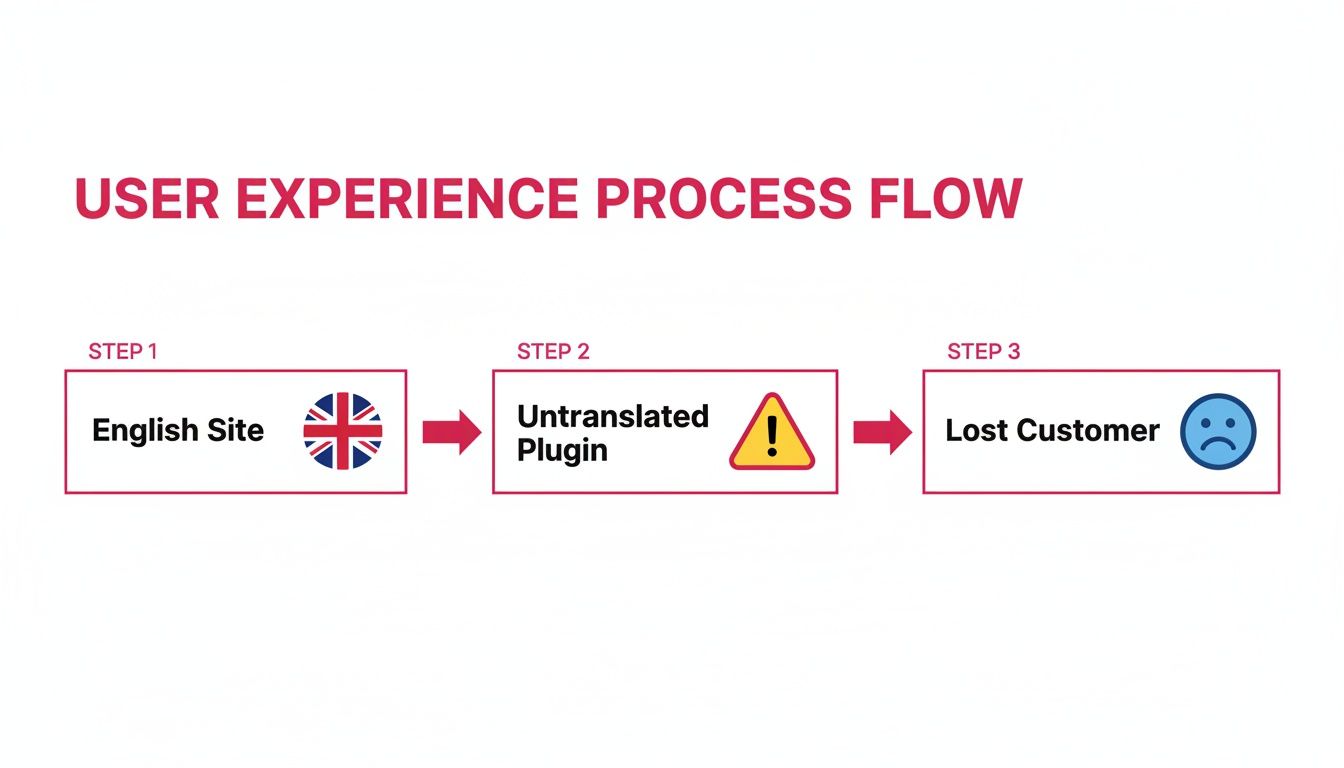
As you can see, something as small as an untranslated button can completely derail the customer's journey and cost you a sale.
The Role of POT Files
Think of the POT (Portable Object Template) file as the master blueprint for your translations. It’s an automatically generated file that scans the plugin's code and extracts every single text string—from button labels like "Add to Cart" to error messages and admin notices.
The key thing to remember is that a POT file contains zero translations. It's purely a template listing all the original English text. If a developer doesn't provide a POT file, your job gets a lot harder, as you’ll have to find and extract all the translatable text yourself.
Your Working Copy: PO Files
This is where you come in. The PO (Portable Object) file is your active, working document. You create a PO file from the main POT template for each language you want to support. So, if you're translating a plugin into Spanish, you'll create a file named something like es_ES.po.
Inside this file, you'll see all the original English strings, each one paired with an empty space for you to type in the Spanish equivalent. This is where the real translation work happens. You’ll have a separate PO file for every language you add to your site.
A simple analogy: The POT file is the 'original recipe,' the PO file is your 'annotated recipe card' with your notes and translations, and the MO file is the 'final printed version' for the kitchen staff to use.
The Final, Compiled Version: MO Files
Finally, we have the MO (Machine Object) file. This is one file you'll never edit directly. Instead, it’s automatically compiled from your PO file every time you save your translations.
The MO file holds the exact same translations as its PO counterpart, but it's converted into a binary, machine-readable format. Why? Speed. WordPress reads these highly optimized MO files—not the human-readable PO files—to instantly load and display translations on your website. This is what keeps your multilingual site running fast and smooth for every visitor.
The Classic Method Using Poedit and FTP
For those who want total, hands-on control over their translations, the old-school method still holds up. It's a combination of a desktop app and direct server access, perfect for developers or tech-savvy site owners who are comfortable working with files directly. By avoiding extra plugins, you also keep your site that much leaner.
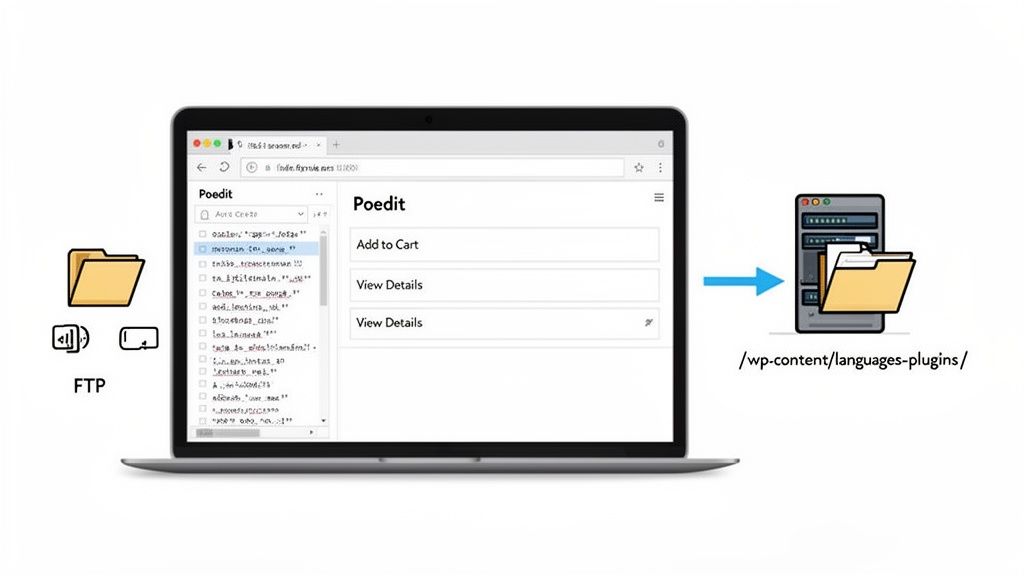
The basic idea is simple: you grab the plugin's master translation file, translate it on your own computer, and then upload the finished product back to your server. This gives you absolute authority over every single string.
Finding and Translating with Poedit
First things first, you need to find the plugin's language template. Navigate into the plugin's folder (usually /wp-content/plugins/plugin-name/) and look for a languages or lang subfolder. Inside, you're looking for the POT (Portable Object Template) file. This is the master list of all the original English strings.
With the POT file in hand, you’ll need a dedicated translation editor. Poedit has been the industry standard for years. It's a free desktop app for Windows, Mac, and Linux that's built for this exact job.
Once you have Poedit installed, the workflow looks like this:
- Create a new translation: Open Poedit, select the option to create a new translation from a POT file, and point it to the one you just downloaded.
- Set the target language: The app will immediately ask you to choose the language you're translating into, like "French (France)."
- Translate string by string: You'll see a clean interface with the original English text. Just click on a string and type your translation in the box below.
Poedit even provides translation suggestions, which can really speed things up. It’s a pretty straightforward process.
Uploading Your Translations via FTP
After you've translated every string, it's time to save your work. Poedit automatically creates two essential files: a .po file, which is your editable source, and a .mo file, which is the compiled version WordPress actually uses.
Pay close attention to the file naming—this is critical. WordPress needs a specific naming convention to know which language the file is for. It follows this pattern: plugin-text-domain-locale.po and .mo. So, a French translation for WooCommerce would be named woocommerce-fr_FR.po.
Heads up: A common and frustrating mistake is uploading your new translation files back into the plugin’s original
languagesfolder. Don't do it! They will be wiped out the next time the plugin updates.
Instead, you need to use an FTP client (like FileZilla) to upload your shiny new .po and .mo files to the correct global directory:
wp-content/languages/plugins/
Placing them here keeps them safe from plugin updates. WordPress will automatically find them and start using your translations on the front end. If this manual approach isn't for you, there are other routes to explore; check out our guide on how to translate a WordPress website for free for more options.
A Simpler Way With the Loco Translate Plugin
Let’s be honest, not everyone wants to mess around with FTP clients and file editors. If you'd rather handle everything from the comfort of your WordPress dashboard, I've got a fantastic solution for translating your plugins: Loco Translate.
With over 1 million active installations, this plugin is the undisputed champion for in-dashboard translations. It essentially brings all the power of a desktop editor like Poedit right into your browser. No more downloading, uploading, or technical headaches. For most people, this is the most straightforward path.
Getting Started with Loco Translate
Getting this set up is no different from installing any other plugin. Just head over to Plugins > Add New, search for "Loco Translate," then install and activate it. You'll see a new "Loco Translate" menu right in your admin sidebar.
Inside, you get a clean overview of all your themes and plugins. Just pick the plugin you want to work on, and you’ll see its current translation status at a glance—which languages are available and how complete they are.
A Practical Translation Example
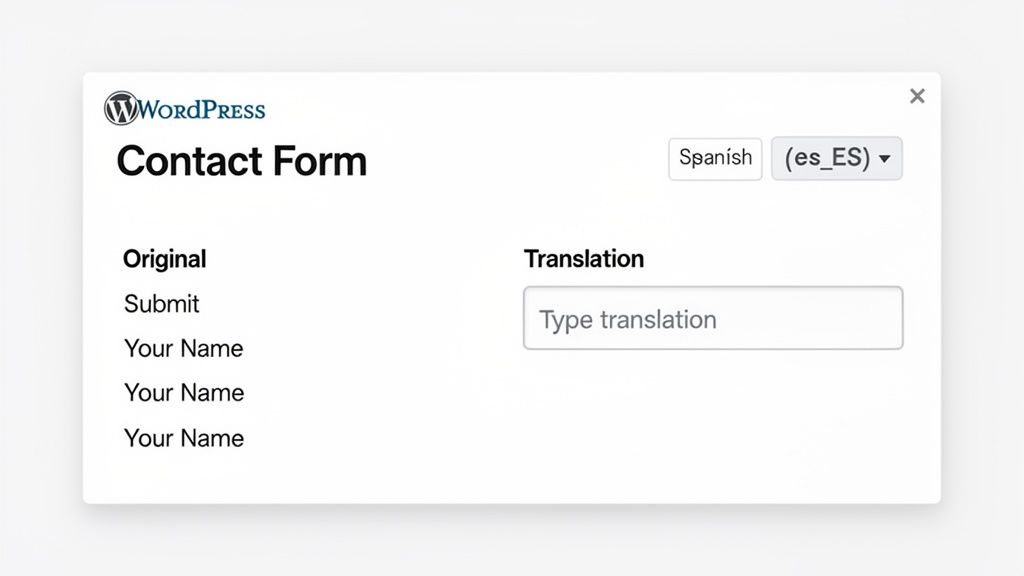
Let's walk through a real-world task: translating a contact form. Say your form has fields like "Your Name" and a "Submit" button, and you need to get them ready for your Spanish-speaking audience.
Here’s how you’d do it with Loco Translate:
- Select the Plugin: From the Loco Translate dashboard, find and click on your contact form plugin.
- Add a New Language: Hit the "New language" link. A dropdown will appear—just choose the language you need, like "Spanish (Spain)."
-
Choose a Location: This next step is critical. You’ll be asked where to save the files. Always pick the "Custom" location, which saves your work in
wp-content/languages/loco/. Why? This protects your translations from being wiped out the next time the plugin updates. - Start Translating: Now you'll see a list of every text string from the plugin. Find "Submit" in the list, click on it, and then type "Enviar" into the translation box at the bottom. Do the same for "Your Name," entering "Tu Nombre."
-
Save Your Work: Click the "Save" button. That’s it! Loco Translate handles creating and placing both the
.poand.mofiles for you.
And just like that, your contact form is now showing the correct Spanish text on your website.
One of my favorite things about Loco Translate is its ability to build a POT file from scratch. If a plugin author forgot to include one, the plugin can scan the code and generate the template for you. This is an absolute lifesaver for plugins that weren't properly set up for translation.
The plugin also has a very handy "Sync" button. When a plugin update adds new text, just click this button. It will automatically pull the new strings into your existing file, so you can translate just the new bits without redoing all your work. This feature alone makes ongoing maintenance so much easier.
Comparison of Plugin Translation Methods
So, you have two great manual options: the classic Poedit workflow or the in-dashboard convenience of Loco Translate. This table breaks down the key differences to help you decide which one fits your style.
| Feature | Poedit + FTP (Classic Method) | Loco Translate (In-Dashboard) |
|---|---|---|
| Workflow Location | Offline on your desktop; requires file transfers via FTP/SFTP | Entirely within your WordPress dashboard; no external tools needed |
| Technical Skill Level | Intermediate; comfortable with file management & FTP | Beginner-friendly; ideal for non-technical users |
| Setup Process | Install Poedit on your computer, connect to your server | Install and activate the plugin directly from WordPress |
| File Management | Manually download POT/PO files, upload compiled MO files | Automatically creates and saves .po and .mo files in the right place |
| Update Handling | Manually refresh from POT/source code for new strings | One-click "Sync" button to pull in new strings after updates |
| Best For | Developers, offline work, or managing many sites from one place | Site owners, agencies, and anyone who prefers an integrated workflow |
Ultimately, Loco Translate is the winner for most users due to its simplicity and integration. However, if you're a developer or someone who prefers an offline workflow, sticking with Poedit is a perfectly valid and powerful choice.
The Ultimate Solution with Polylang and AI Automation
While tools like Loco Translate are fantastic for translating the static text inside plugins, they hit a wall pretty quickly. They can’t touch dynamic content like blog posts, pages, or the thousands of WooCommerce products that make up your store. For that, you need a much more powerful, site-wide strategy.
Imagine going beyond just tweaking individual plugin strings. What if you could localize your entire website—every piece of content and every user interface element—in a tiny fraction of the time it would normally take? This is where Polylang really shines, especially when you pair it with an intelligent automation tool. The combination creates a truly seamless and comprehensive solution for any multilingual site.
Bridging the Gap with AI-Powered Translation
The Polylang Automatic AI Translation plugin connects Polylang’s solid multilingual framework with the raw power of advanced AI engines. This integration is designed to solve the single biggest challenge of manual translation: the sheer amount of time it takes. Instead of spending weeks or months translating your content library by hand, you can get the job done in minutes.
This approach also brings a level of consistency that’s hard to achieve manually. The same AI that translates your "About Us" page also handles the "Add to Cart" button from your e-commerce plugin and the confirmation messages from your contact form. It creates a unified, professional experience for every single visitor, no matter where they're from.
This shift from manual drudgery to AI automation is a total game-changer. Agencies report that switching to AI cuts multilingual site setup time from days to mere hours, boosting client satisfaction by an impressive 80%. For content managers, this means no more wrestling with
.poand.mofiles. Instead, they can focus on growth, and the stats are clear: multilingual sites enjoy 2.5x higher conversion rates in localized markets. You can achieve effortless multilingual SEO and localization that drives real results by exploring the Polylang Automatic AI Translation plugin.
Perfect Harmony with Modern Page Builders
One of the biggest wins for this automated method is its flawless compatibility with modern page builders. If you’ve built your site with tools like Elementor, Bricks, or Avada, you know your content is stored in complex, sometimes convoluted ways. A simple string translator often can't even see, let alone access, this text.
The Polylang AI plugin was specifically designed to work hand-in-hand with these builders, making sure every single element is found and translated correctly.
- Elementor Widgets: All the text within your custom-designed Elementor sections and widgets gets translated.
- Bricks Builder Elements: The system understands and localizes content built with Bricks' dynamic structure.
- Theme Options: Even those pesky text strings buried deep in your theme's customizer settings can be translated automatically.
This is the ultimate fix for fast, scalable, and high-quality WordPress translation. It closes the loop, connecting your static plugin text with your dynamic site content for a complete solution. For a detailed walkthrough on getting started, you can check out our guide on how to set up the Polylang AI Automatic Translation plugin.
Answering Your Top Questions About Plugin Translation
Even when you've got the best tools and a solid plan, a few questions always seem to pop up once you get your hands dirty with WordPress plugin translation. Let's tackle some of the most common ones I hear, so you can sidestep any roadblocks and get your multilingual site live.
What Happens When a Plugin Updates?
This is probably the biggest fear for anyone managing translations. You've just spent hours getting every string perfect, and suddenly, a plugin update is available. Did all your hard work just go down the drain?
The answer all comes down to where you saved your translation files.
-
The Danger Zone: If you manually uploaded your custom
.poand.mofiles directly into the plugin'slanguagesfolder (likewp-content/plugins/some-plugin/languages/), then yes, your work is in trouble. When WordPress updates a plugin, it completely replaces the old folder, deleting your custom files along with it. -
The Safe Zone: The correct place for your custom translations is the global languages directory:
wp-content/languages/plugins/. WordPress is smart enough to look for translations here first. This folder is completely separate from individual plugin directories and is never touched during updates, so your translations remain safe.
A huge advantage of using a dedicated plugin like Loco Translate is that it automatically saves your files to a protected, update-safe directory (
wp-content/languages/loco/). This feature alone can save you from a world of headaches.
When a plugin update does happen, it will likely introduce new text strings or tweak existing ones. Your task then is to sync your translation file with the plugin's new POT template. Both Poedit and Loco Translate have a "Sync" or "Update from POT" function that makes this incredibly easy. It flags any new or changed strings, so you only have to translate what's new instead of starting from scratch.
Why Are Some Plugin Strings Just Not Translating?
It’s a frustratingly common problem. You’ve translated everything you can find in the editor, but a few stubborn bits of text on your live site are still stuck in English. This usually points to one of two culprits.
First, the developer might have hard-coded the text directly into their code. Instead of wrapping the text in a proper internationalization function (like __() or _e() in PHP), they just typed it in. If a string isn't marked this way, WordPress has no idea it's meant to be translated, and it will never show up in a POT file. Your only real option here is to contact the plugin developer and ask them to make their plugin "translation-ready."
Second, some strings might be loaded with JavaScript after the page has already loaded. These dynamic strings are notorious for being missed by standard POT file generators. While tools like Loco Translate are getting much better at sniffing these out, sometimes they still need a developer's touch or a more specialized approach to be captured and translated correctly.
Can I Mix and Match Different Translation Tools?
Absolutely! In fact, that's often the most effective strategy. There's no single "best" tool that does everything perfectly. A smart workflow involves building a toolkit that plays to each tool's strengths.
Here’s a powerful combination I often recommend:
- Use Loco Translate for the static text inside your theme and plugins—all those buttons, labels, and admin messages. It’s built for that.
- Pair it with Polylang to manage the connections between your translated posts, pages, and other content.
- Then, you can bring in an AI-powered tool like the Polylang Automatic AI Translation plugin to handle the bulk translation of your actual site content with impressive speed and consistency.
This hybrid approach gives you the fine-tuned control of a string editor where it counts and the sheer power of automation for the heavy lifting.
Of course, managing a multilingual site involves more than just translation. You're always looking for ways to improve the user experience across the board. For example, if you're working on building trust with your audience, learning how to add a Google Reviews widget to WordPress is another great step you can take.
At EPIC WP Solutions, we believe building a fully multilingual website shouldn't feel like a chore. We created the Polylang Automatic AI Translation plugin to make high-quality, site-wide translation accessible to everyone. Stop wrestling with files and start connecting with your global audience today. Learn more about the Polylang Automatic AI Translation plugin and see how it can completely change your workflow.