Polylang AI Translation v4.27 adds an AI Agents tab to the plugin. Connect Claude Code, Claude Desktop, Cowork, Cursor or any other MCP client to your site, and the agent can check what still needs translating, translate posts and terms, start and watch bulk runs, read the plugin’s logs and even file a support request with us. It works with the rights of your own WordPress account and the same safety checks as the admin screens. This post explains what an agent can do and walks you through the setup, step by step.
Why talk to your translations through an agent?
Keeping a multilingual site up to date is a lot of small decisions. Which German pages went out of date after last week’s edits? Did the French product descriptions all come through? Why did two items fail yesterday? Until now you answered those questions by clicking through the dashboard, filtering lists and reading logs.
With v4.27 you can ask instead. “Which posts are missing a Dutch translation? Translate the three most recent ones and tell me when they’re done.” The agent uses the plugin’s own tools to find the gaps, start the translations and report back. The plugin keeps the rules: it decides what the agent may touch, never overwrites a translation you fixed by hand unless you allow it, and refuses to start anything while a readiness check fails.
What an agent can do
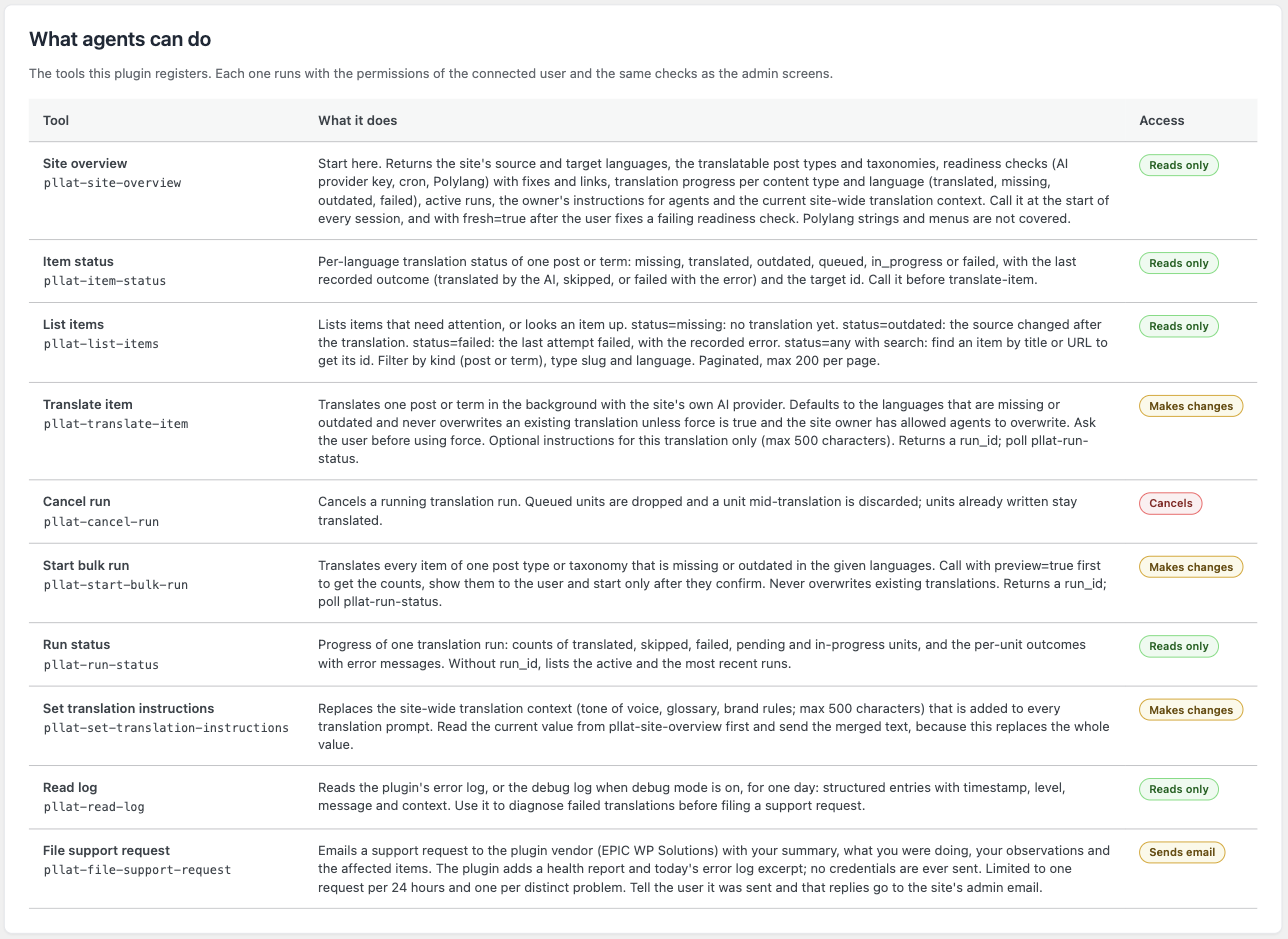
The plugin registers ten tools through the WordPress Abilities API and publishes them on its own MCP server. Each tool runs with the permissions of the connected user.
- Reads only: site overview, item status, list items, run status, read log.
- Makes changes: translate item, start bulk run (always previewed first), set translation instructions.
- Cancels: cancel run.
- Sends email: file support request, which you can switch off.
A few rules are built in and cannot be talked around by a clever prompt:
- An agent can never skip a failing readiness check. If the API key is invalid or WP-Cron is down, it gets the same message you would, with the fix.
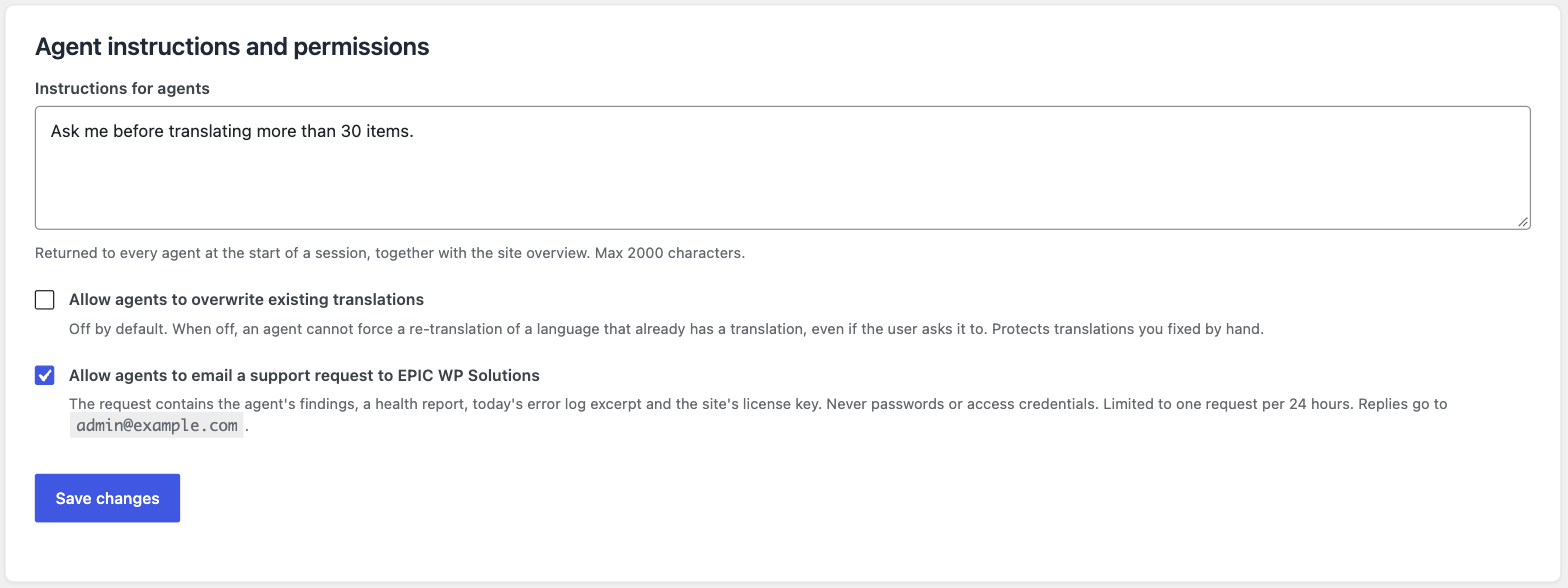
- Existing translations are never overwritten unless you tick “Allow agents to overwrite existing translations”. Off by default.
- Bulk runs are previewed first. The agent sees the counts, shows them to you and starts only after you confirm.
- Everything an agent starts shows up in the activity log and the dashboard like any other run, so you can always see what happened.
What you need
- Polylang AI Translation Pro 4.27 or newer.
- WordPress 6.9 or newer. The Abilities API arrived in 6.9; on older versions the tab tells you to update and everything else keeps working.
- The free MCP Adapter plugin from wordpress.org. Some plugins already ship it; the Status card on the tab tells you whether it is active.
- HTTPS, because WordPress Application Passwords require it on production sites.
- An MCP client: Claude Code, Claude Desktop or Cowork, Cursor, or any other client that speaks MCP over HTTP.
Setting it up in five minutes
1. Update and open the AI Agents tab
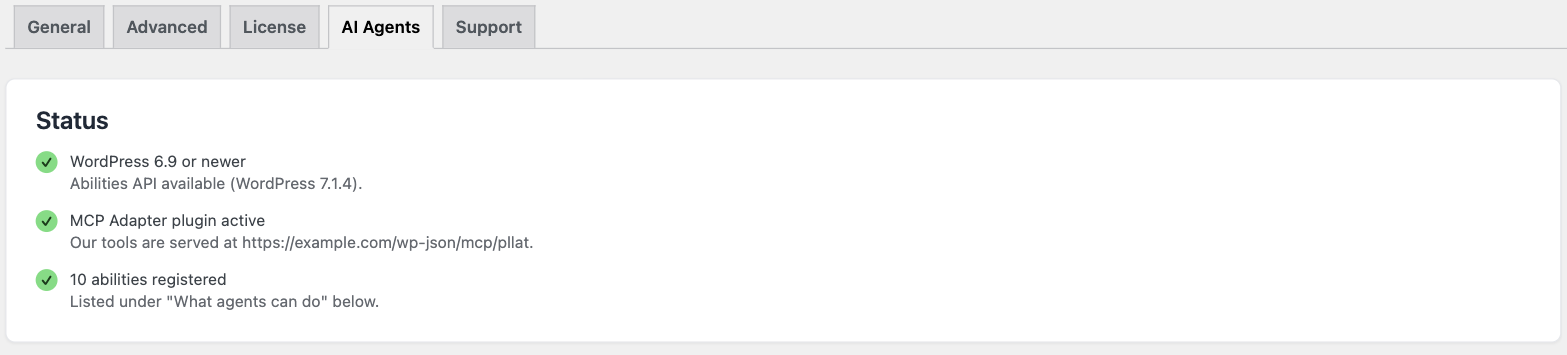
Update the plugin under Plugins → Updates, then go to Languages → AI Settings and open the AI Agents tab. The Status card shows three checks: WordPress 6.9 or newer, the MCP Adapter, and the ten registered abilities.
2. Install the MCP Adapter if it is not active yet
If the second row is not green, install and activate the MCP Adapter from wordpress.org and reload the tab. The adapter is the official bridge between WordPress abilities and MCP clients. Without it the abilities still work over the REST API and WP-CLI, but AI clients cannot connect.
3. Create a connection
Click Create connection. The plugin creates a WordPress Application Password for your account and shows the endpoint, your username and the password. The password is shown once, so copy the configuration for your client right away.
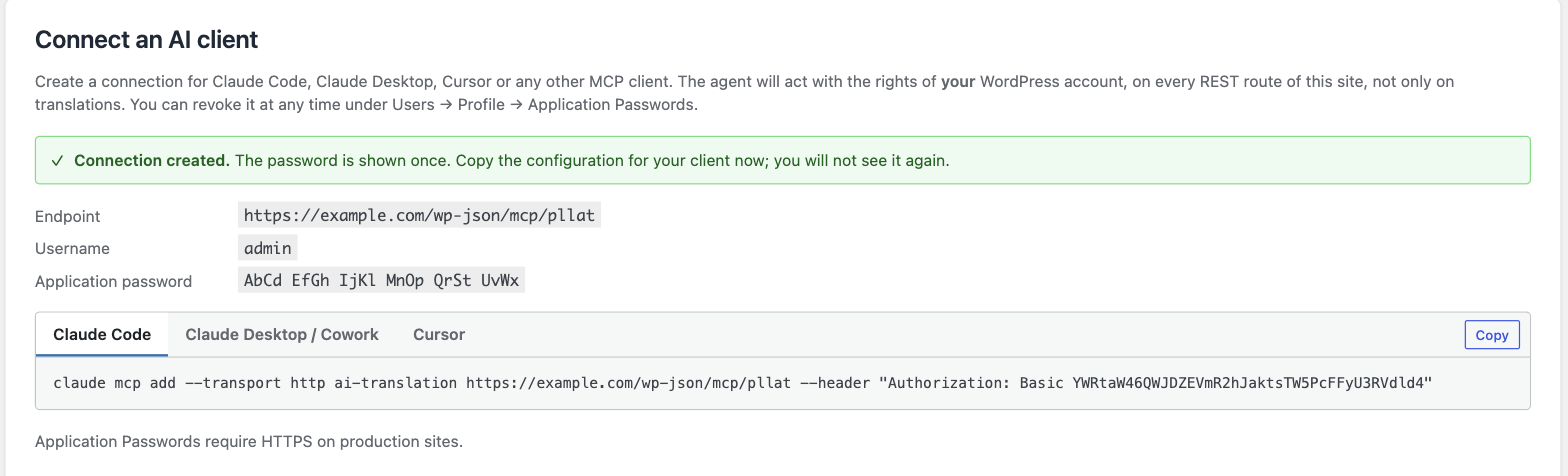
Two things worth knowing. The agent acts with the rights of your WordPress account, on every REST route of the site, not only on translations. So connect it from an account with the rights you want it to have, and create a separate connection per client or device. You can revoke any connection at any time, on the tab itself or under Users → Profile → Application Passwords.
4. Add it to your client
Claude Code. Open the Claude Code tab, click Copy and paste the command in your terminal. It registers the server under the name ai-translation:
claude mcp add --transport http ai-translation https://your-site.com/wp-json/mcp/pllat --header "Authorization: Basic ..."Start a Claude Code session and the tools are available right away.
Claude Desktop and Cowork. Open the Claude Desktop / Cowork tab and copy the JSON into your claude_desktop_config.json (Claude Desktop → Settings → Developer → Edit Config), then restart Claude Desktop. This snippet runs the connection through a small helper that needs Node.js on your computer.
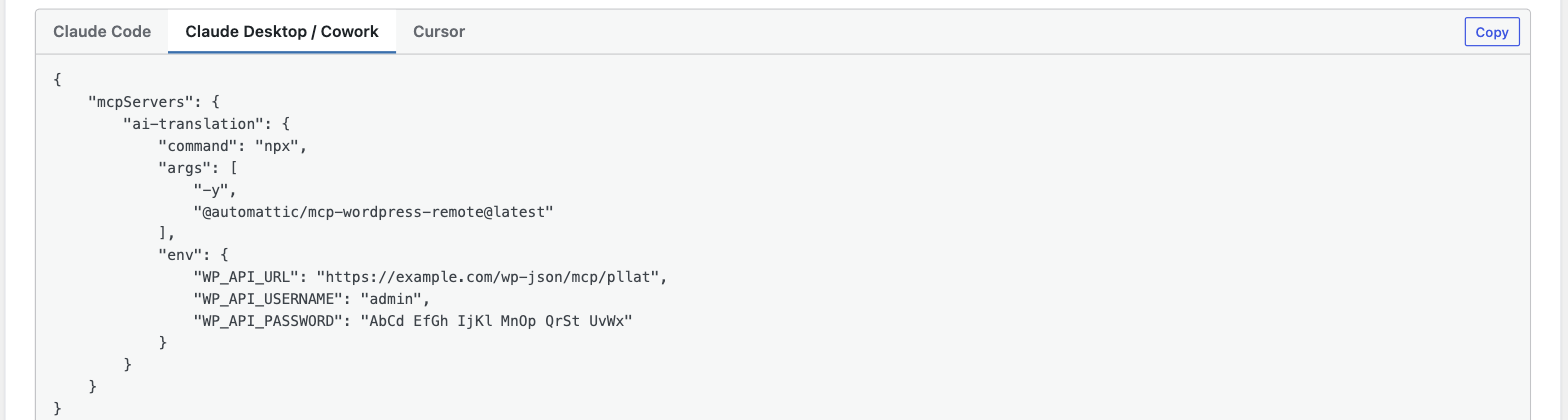
Cursor. Open the Cursor tab and copy the JSON into .cursor/mcp.json in your project, or add it as a global MCP server in Cursor’s settings.
Other clients. Any MCP client that supports HTTP transport works. Use the endpoint shown on the tab and HTTP Basic authentication with your username and application password.
5. Set your ground rules
At the bottom of the tab you can give agents standing instructions, such as “Ask me before translating more than 30 items” or “Never translate product SKUs”. They are handed to every agent at the start of a session, together with the site overview. Here you also decide whether agents may overwrite existing translations and whether they may email a support request to us.
Your first session
Once connected, talk to the agent the way you would brief a colleague. A few prompts to try:
- “Give me an overview of the translation status of this site.” The agent calls the site overview and reports your languages, the readiness checks and the progress per content type.
- “Which posts are missing a German translation? Translate the three most recent ones.” It lists the gaps, starts three translations, polls their progress and tells you when they are done.
- “Translate every product to French and Spanish. Show me the numbers first.” It previews the bulk run, waits for your go-ahead, then starts it.
- “Yesterday’s run failed on two items. What went wrong?” It reads the run status and the log and explains the cause. If it looks like a plugin problem, it can file a support request with its findings and a health report, so you do not have to write it up yourself.
Everything the agent starts appears on the translation dashboard and in the activity log, exactly as if you had clicked the buttons yourself.
Also in this release
A handful of fixes came out of our own end-to-end test of the new tools, and a few of them affect everyone:
- Switching the AI provider on the General tab now updates the model list straight away. A cached settings script could keep showing the models of the previous provider.
- Translated terms now show the time they were actually translated instead of the current time.
- Run progress counts a unit that is between batches of a long text as in progress instead of queued.
- The provider connectivity check re-tests your API key automatically when its last result is older than a day, instead of warning about its age.
What’s changed
- New AI Agents tab: connect Claude Code, Claude Desktop, Cowork, Cursor or any MCP client.
- Ten translation tools registered through the WordPress Abilities API and served on the plugin’s own MCP server.
- Standing instructions for agents, plus switches for overwriting translations and filing support requests.
- Agents never bypass a failing readiness check and always preview bulk runs first.
- Fixes for the provider dropdown after a provider switch, term translation timestamps, run progress counts and the connectivity check.
Update now
This update is available now for all customers. Go to Plugins → Updates in your WordPress admin, or download the latest version from your account dashboard.
If you’re not using Polylang AI Translation yet, check it out here. Questions, feedback, or need a hand? Open a support ticket and we’ll get you sorted.
Want the full history of every release? See the complete changelog.