This guide is created to help you setup the Polylang AI Automatic Translation plugin with OpenAI to translate WordPress content with the help of AI. It assumes you have a valid license to use the plugin.
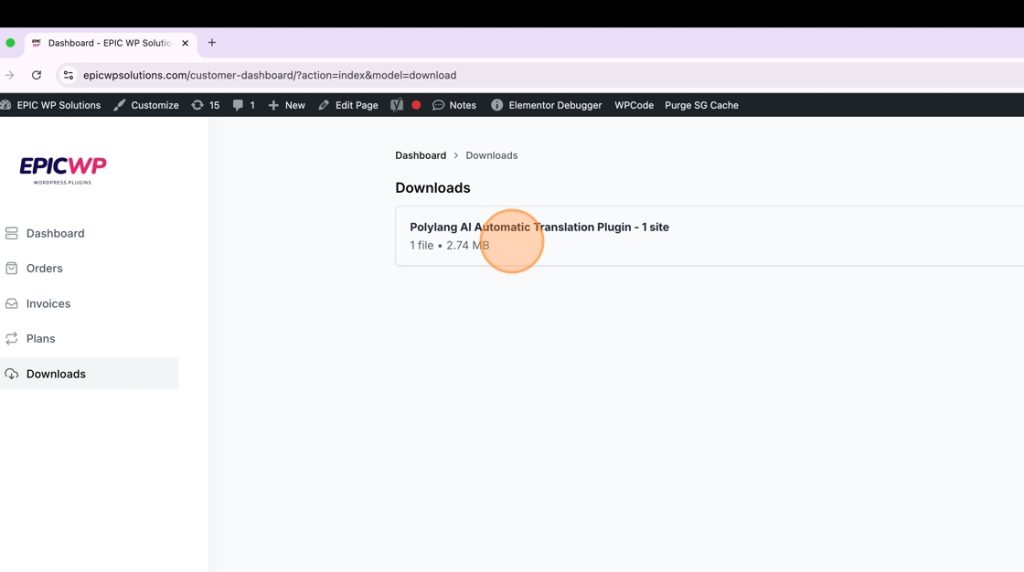
1. First, login to your customer dashboard via https://www.epicwpsolutions.com/customer-dashboard and click on the left side navigation on “Downloads”
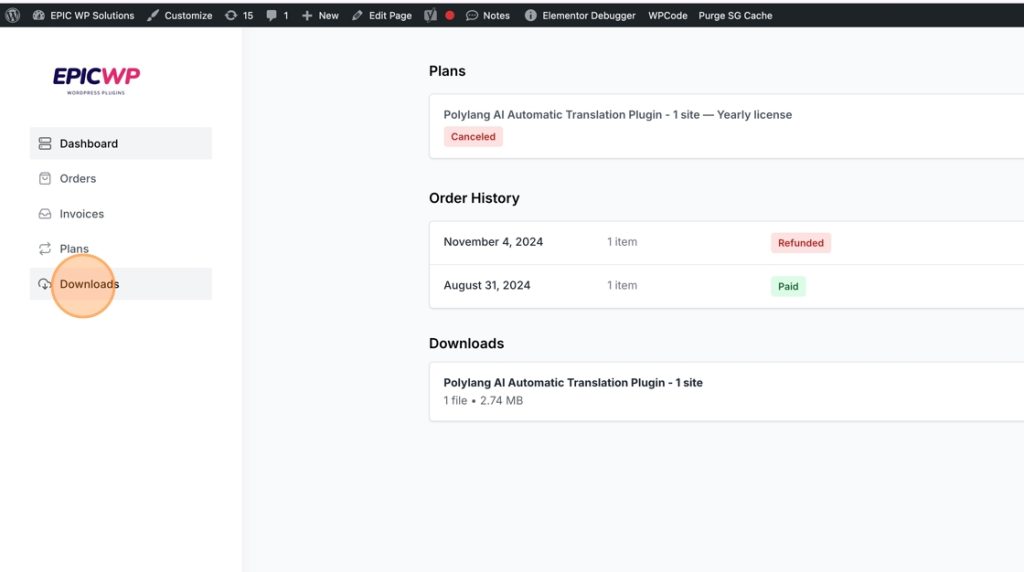
2. Open the download by clicking on it.
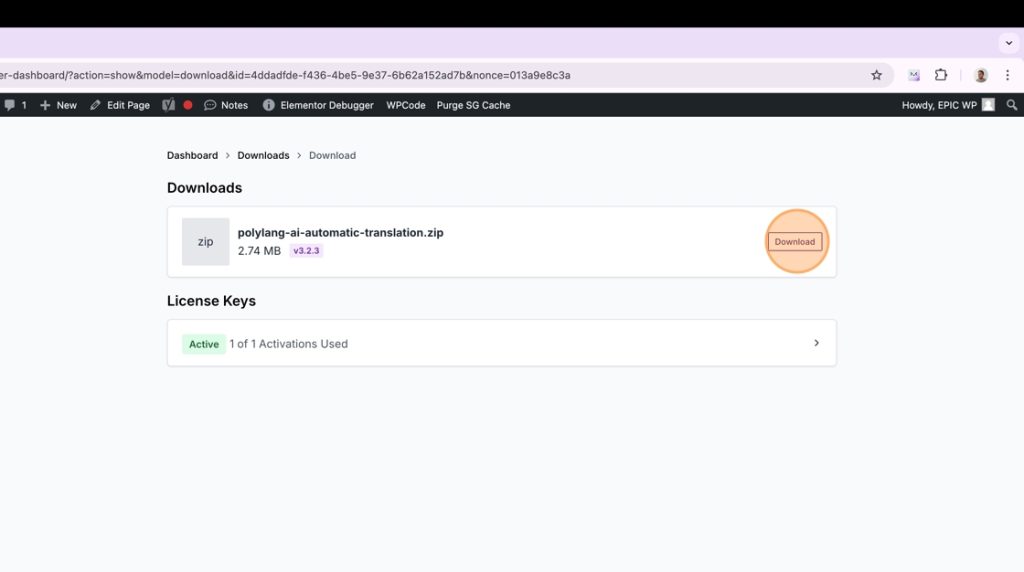
3. On the right side click “Download” to download the plugin zip file.
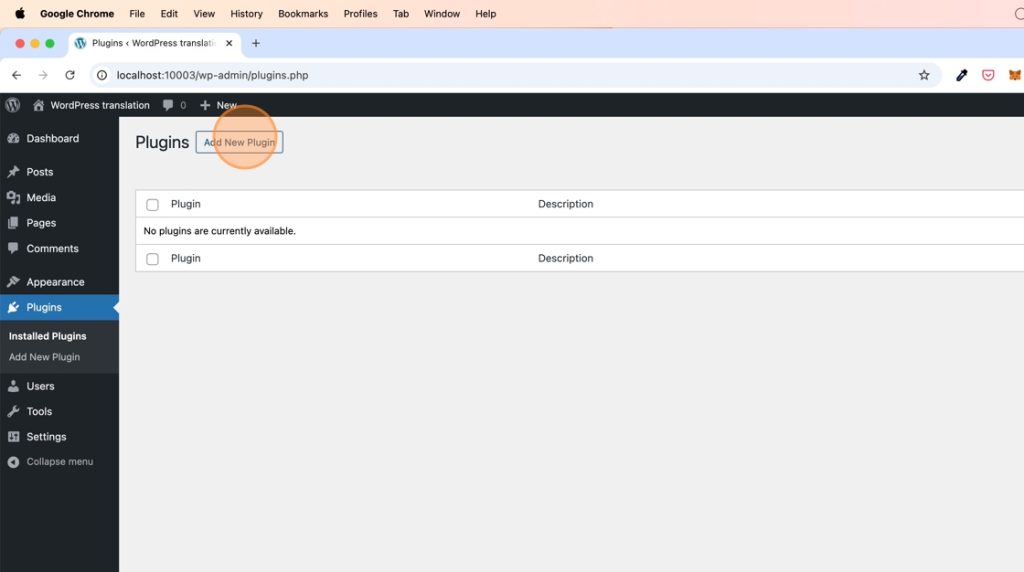
4. Go to your WordPress admin and in the plugins section click “Add new Plugin”.
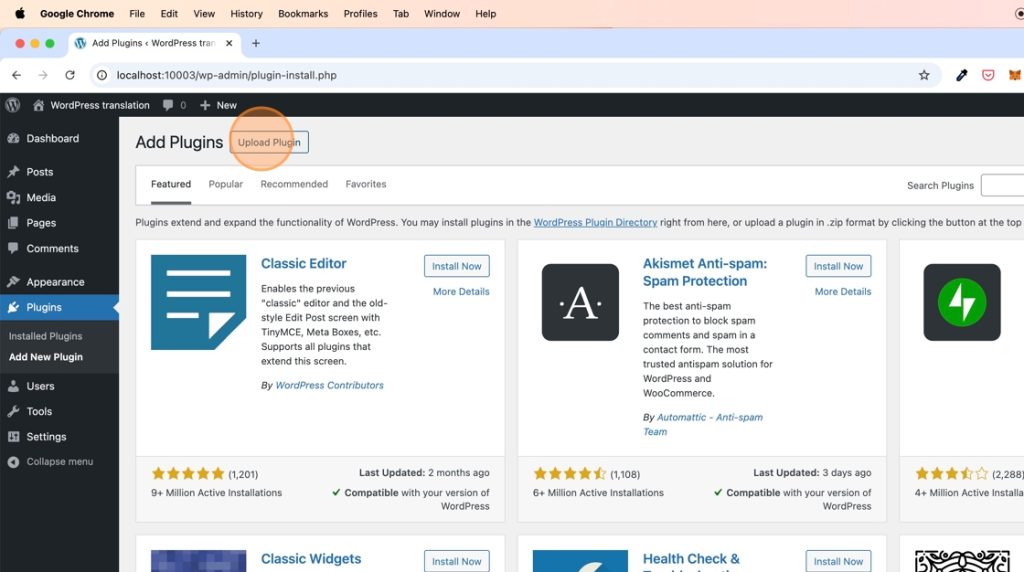
5. Click “Upload Plugin”
6. Choose the plugin file you just have downloaded.
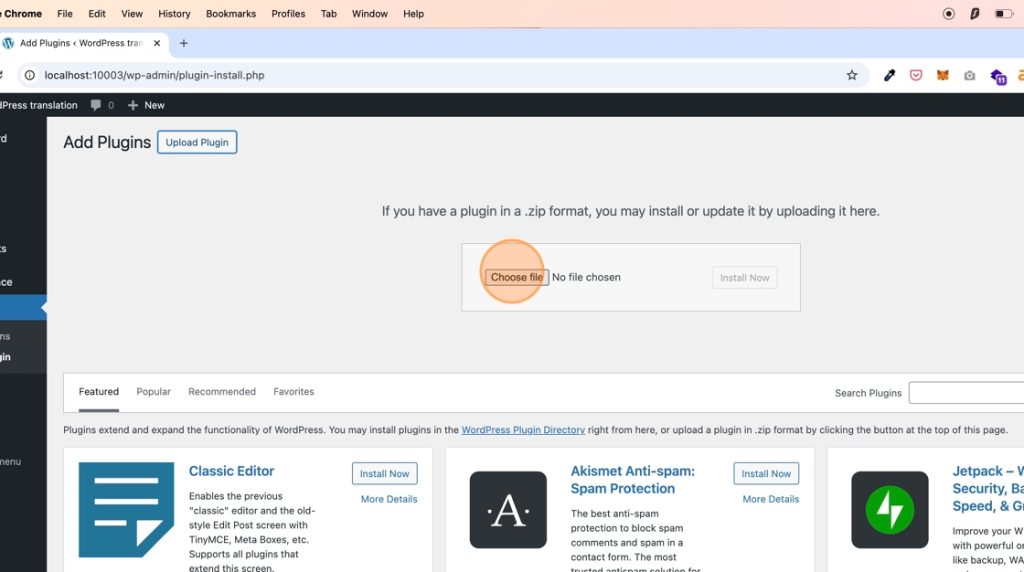
7. Find the “polylang-ai-automatic-translation.zip” file on your computer and select it.
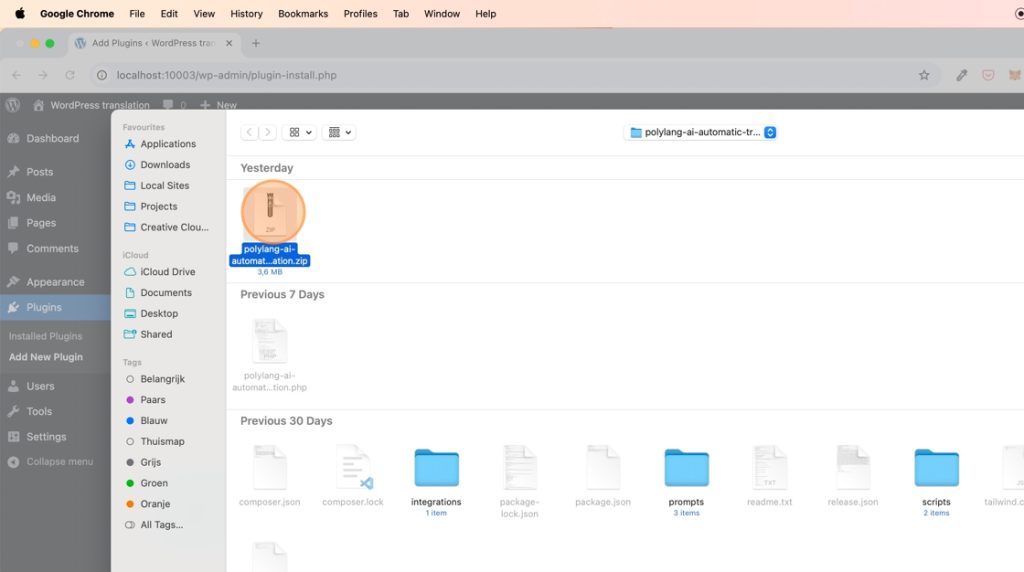
8. Click “Install Now”.
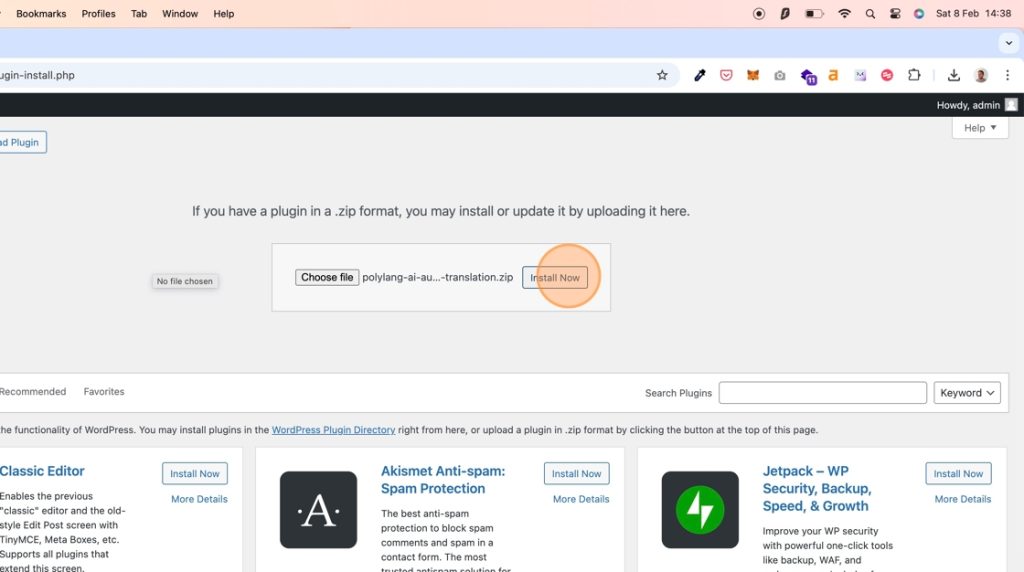
9. Click “Activate Plugin”
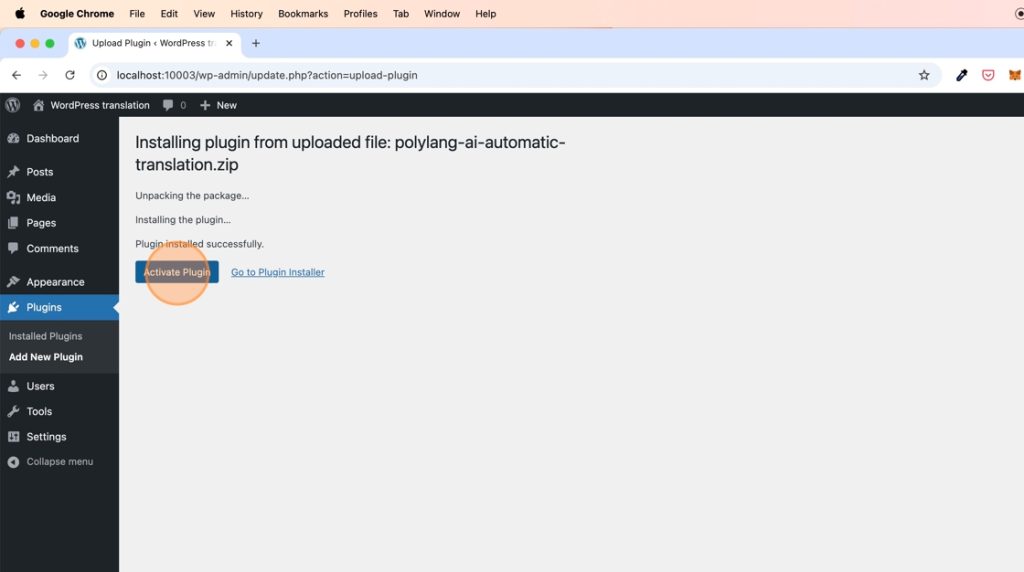
10. Now that we have the Polylang AI Automatic Translation (extension) plugin installed we also need the main Polylang plugin.
*If you have Polylang already installed on your WordPress website, you can skip this part.

11. Search for “Polylang” in the search bar
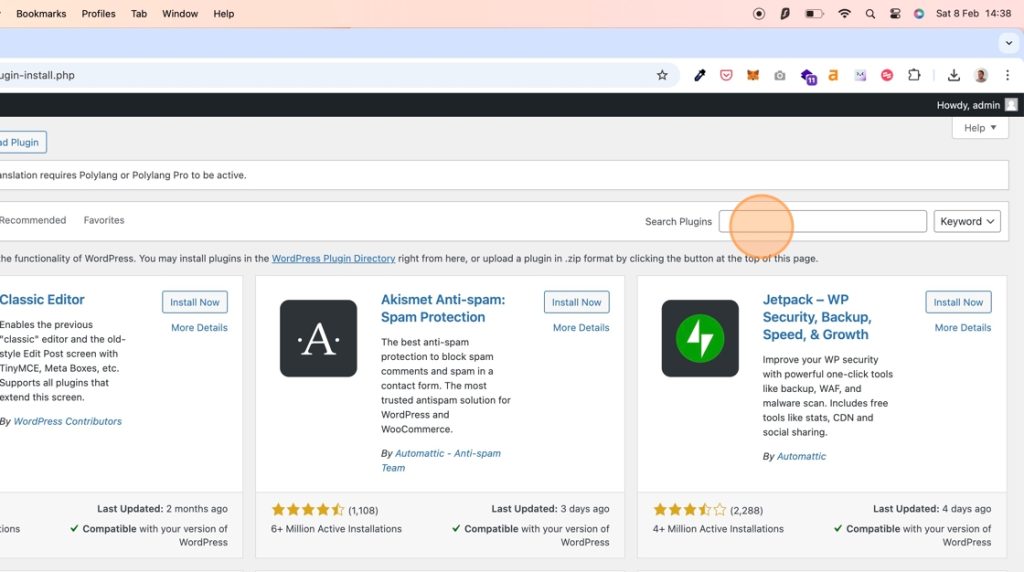
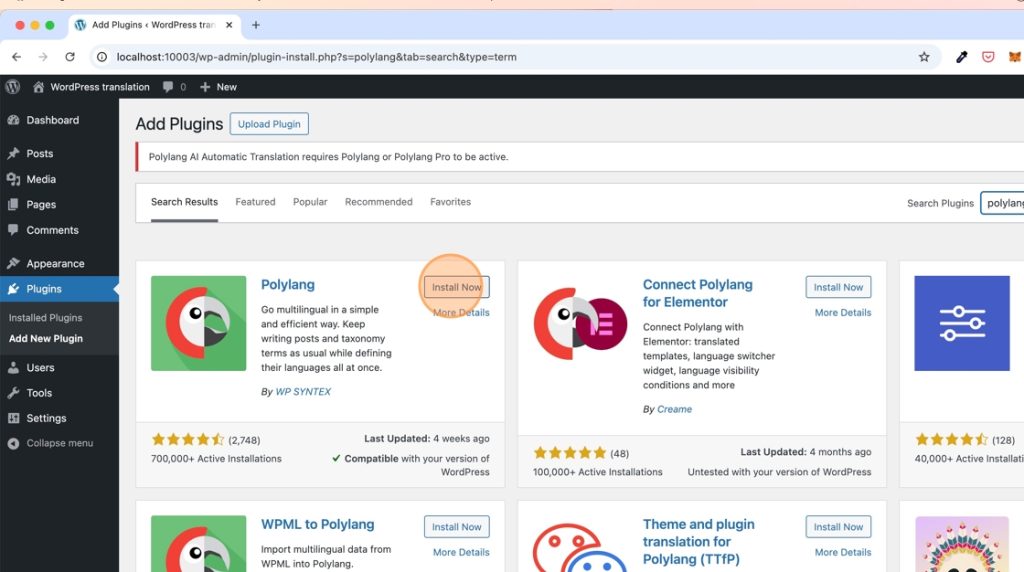
12. You will find the Polylang plugin as one of the first results. Click “Install Now”.
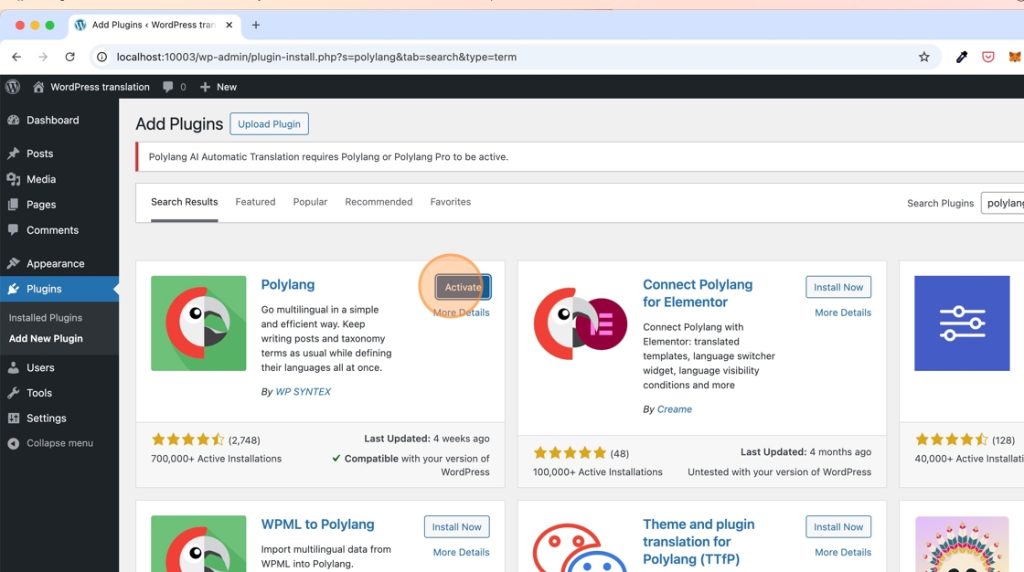
13. Click “Activate” and finish the Polylang setup where you choose your languages and set other translation preferences.
14. Now that both Polylang and the Polylang AI Automatic Translation plugins are installed we need to activate the license of the AI plugin.
15. Go back to your dashboard at https://www.epicwpsolutions.com/customer-dashboard
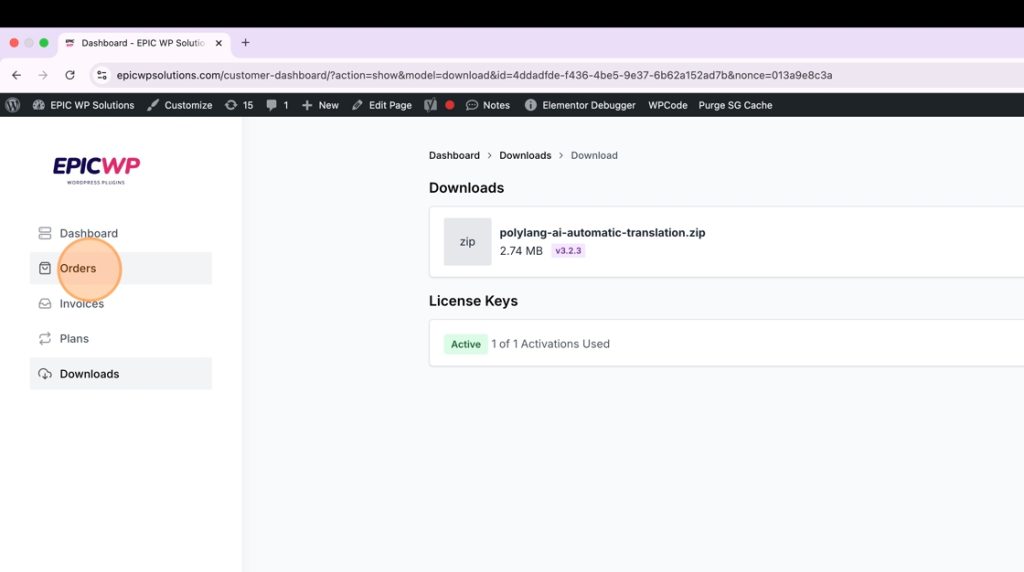
16. Go to “Downloads”
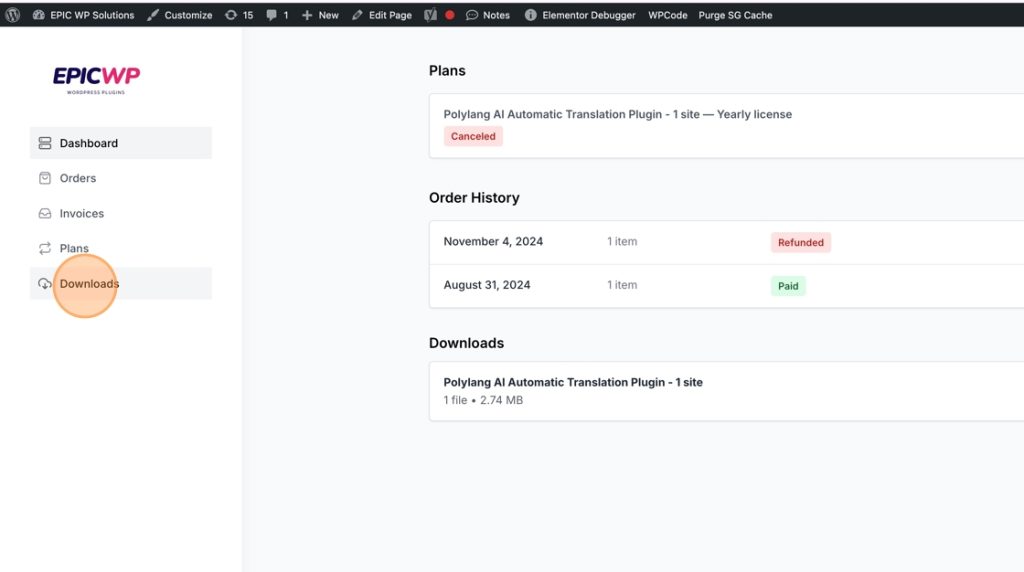
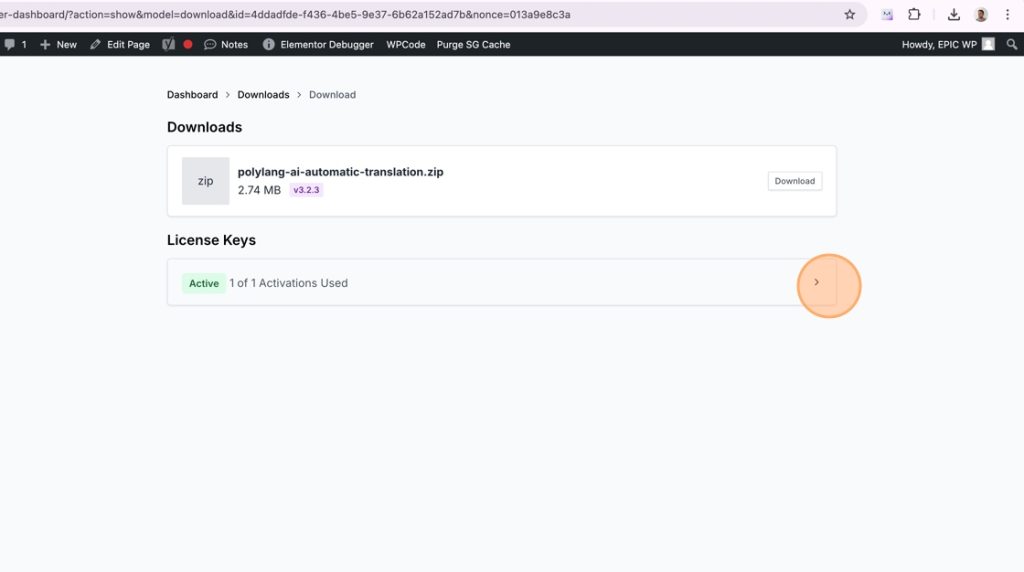
17. On the “Downloads” page you will find a section called “License Keys”. Click on one of the active license keys to open it.
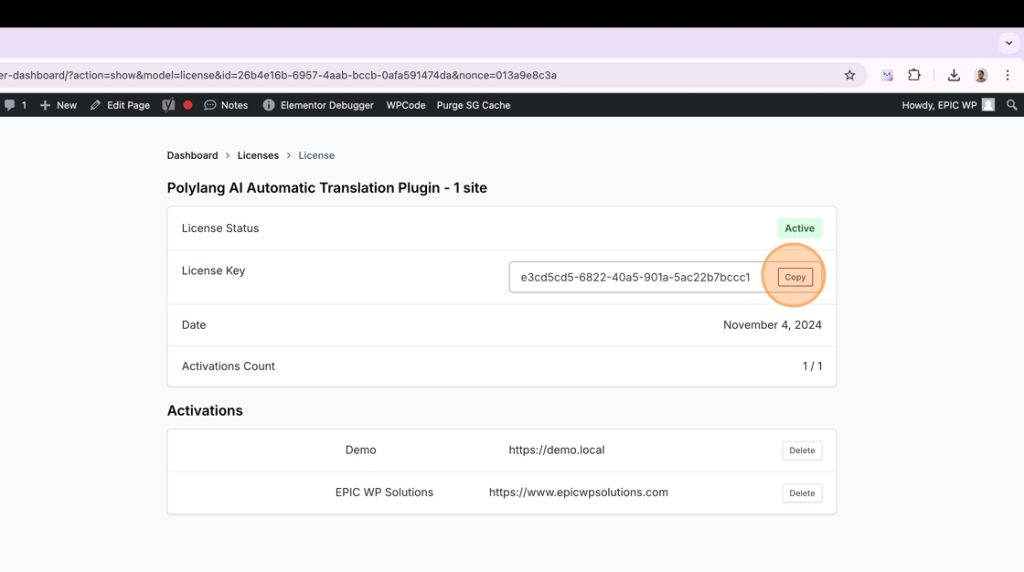
18. Here you will find you license key. Click “Copy” to copy it to your clipboard.
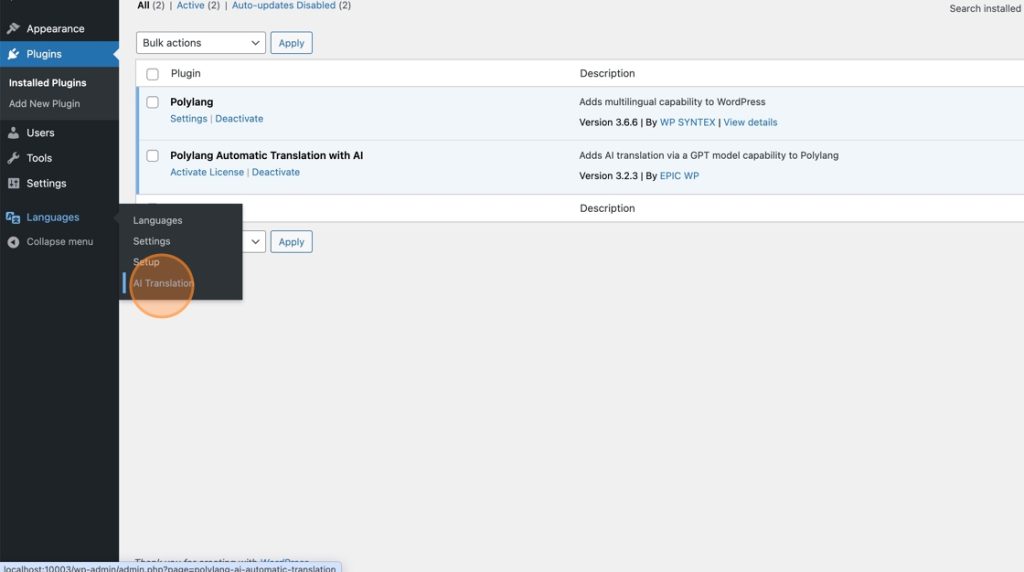
19. Now go back to your WordPress admin and go on the left side navigation to Languages -> AI Translation.
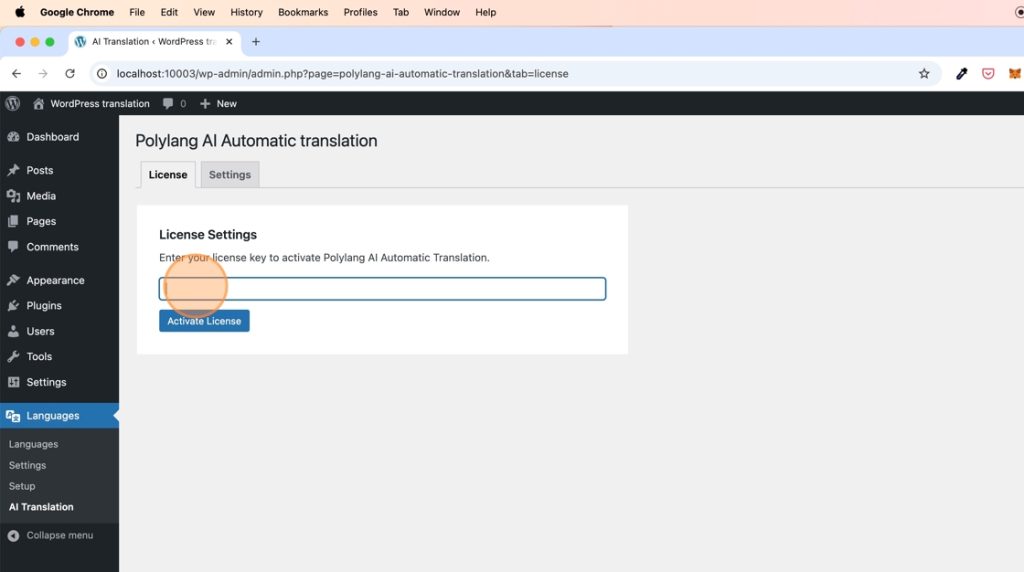
20. Enter you License key and click “Activate License”.
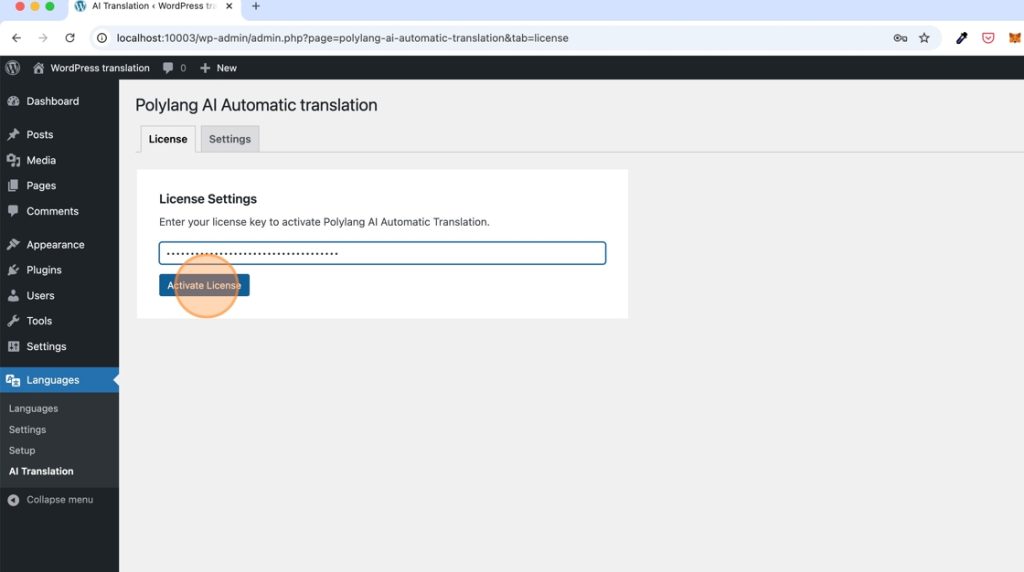
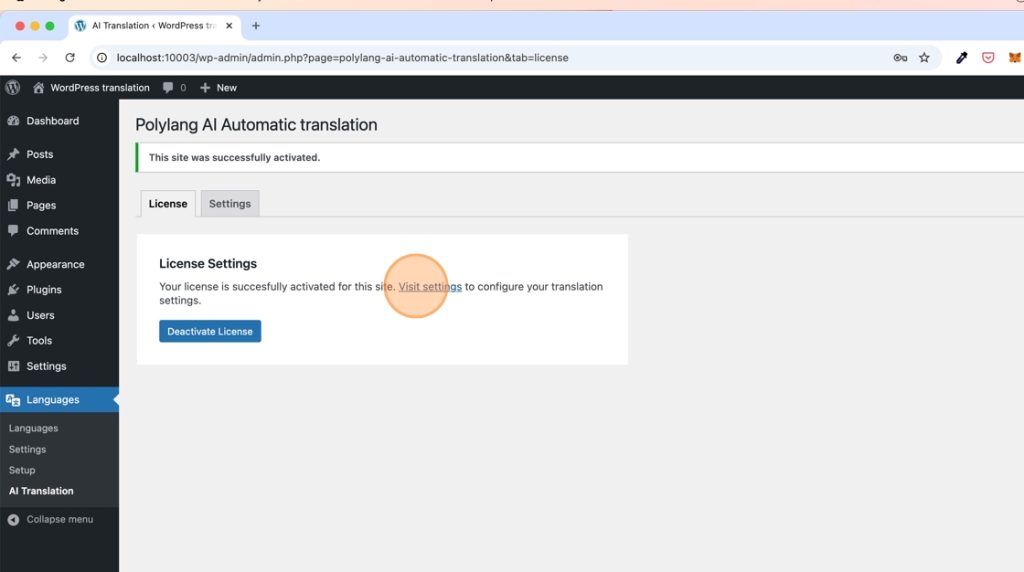
21. Your license key is now activated. Click on “Visit Settings” to go to the plugins settings.
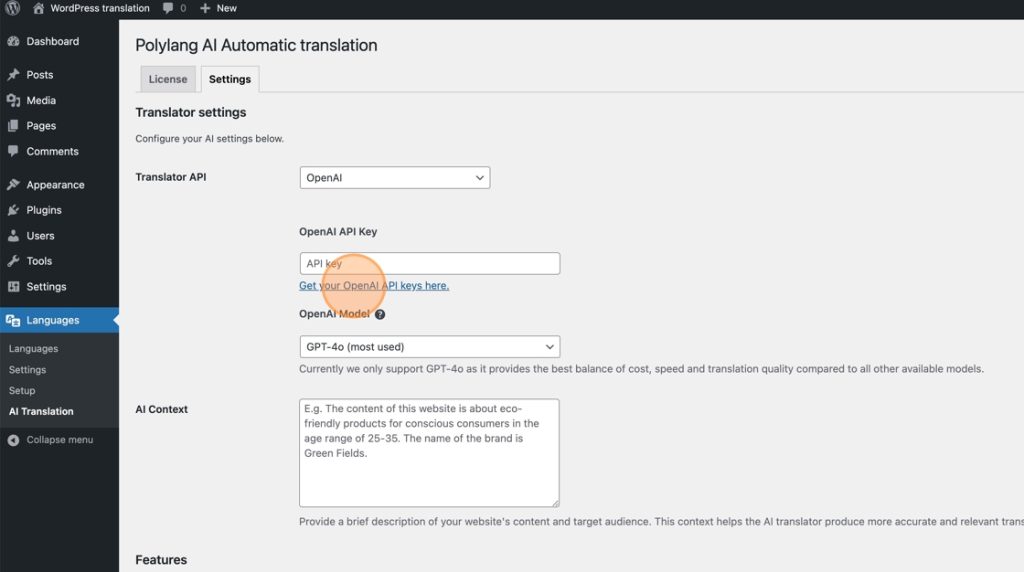
22. Now we are going to connect OpenAI to the plugin with your own Open AI key. Via this key you will pay (very small costs) for the usage of the AI to translate your WordPress content.
For “Translator API” select “OpenAI”.
To get your OpenAI API key click “Get your OpenAI API keys here” or follow the more detailed steps of this guide: https://www.epicwpsolutions.com/how-to-get-your-openai-api-key/
23. IMPORTANT: Although translations with OpenAI on average cost around $0.01 per 1000 words translated, make sure you add at least $5* to your OpenAI account. This will allow us to use the GPT4o model for translation.
*Preferably add $50 credit to your OpenAI account, because higher usage tiers get improved performance from OpenAI. For more information check: https://platform.openai.com/docs/guides/rate-limits#usage-tiers
24. Paste your OpenAI API key in the input field.
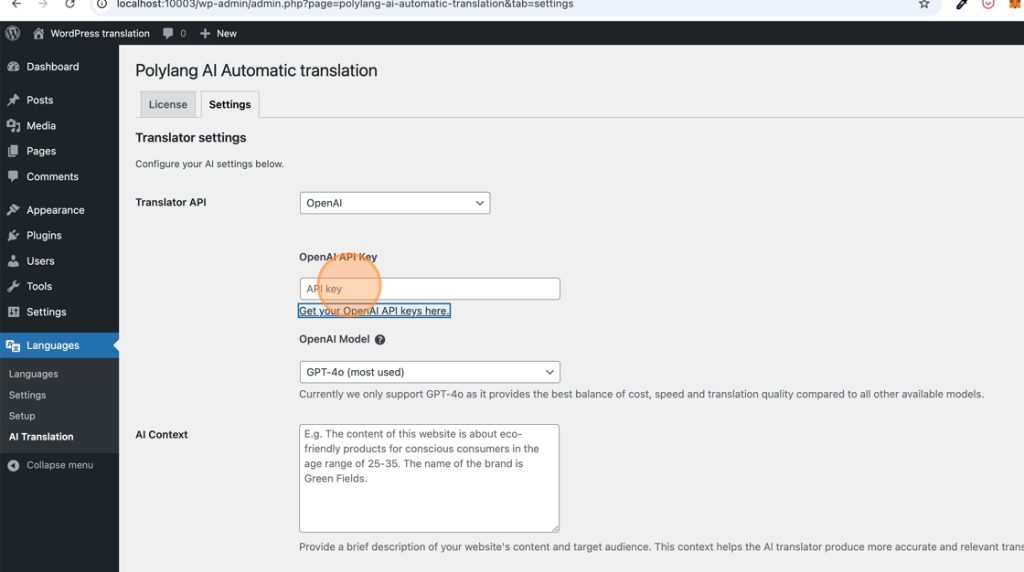
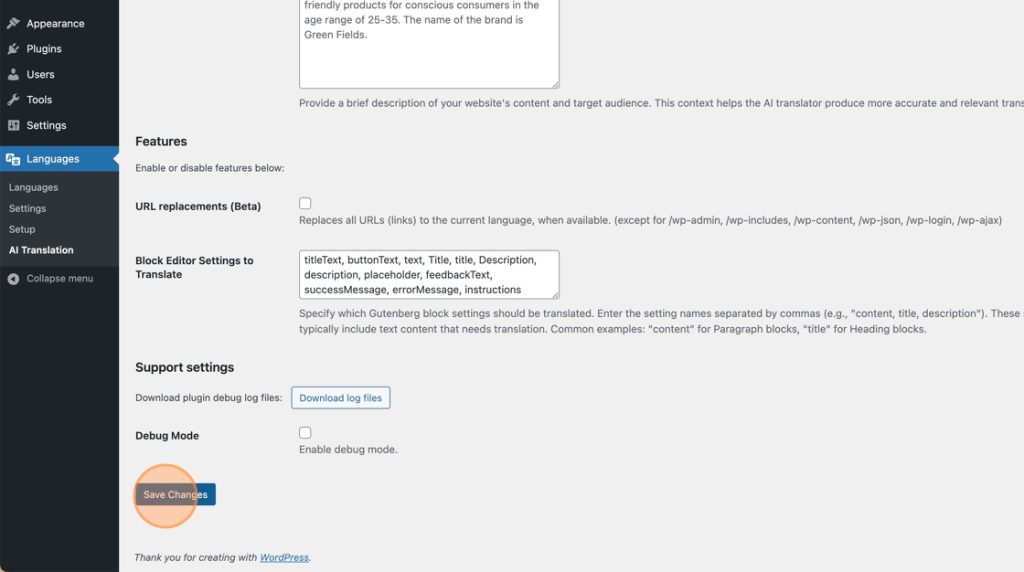
25. Click “Save changes”. You are now setup to translate your WordPress content with AI and Polylang automatically.